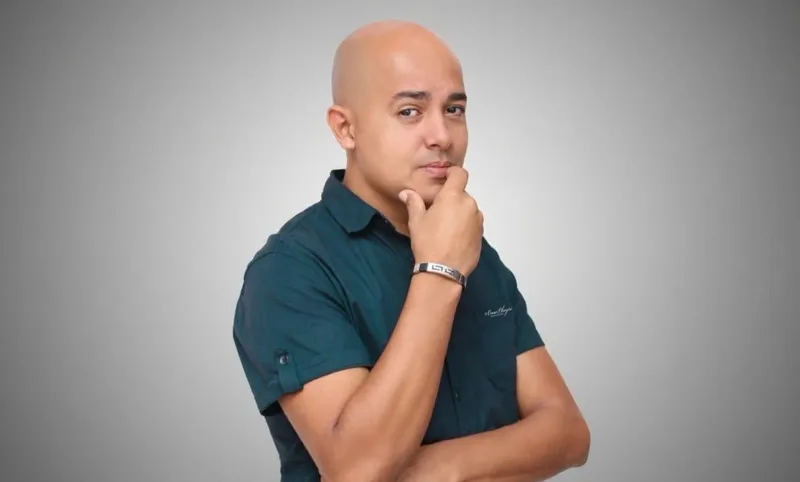
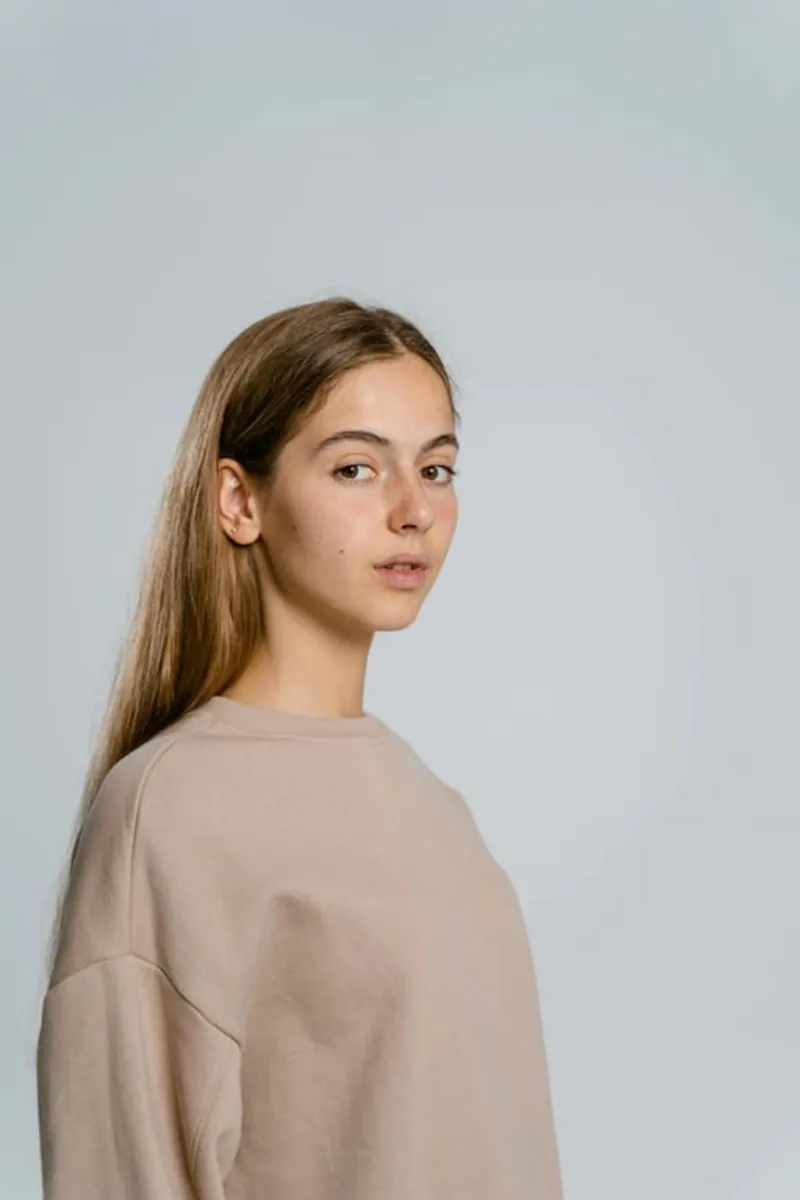
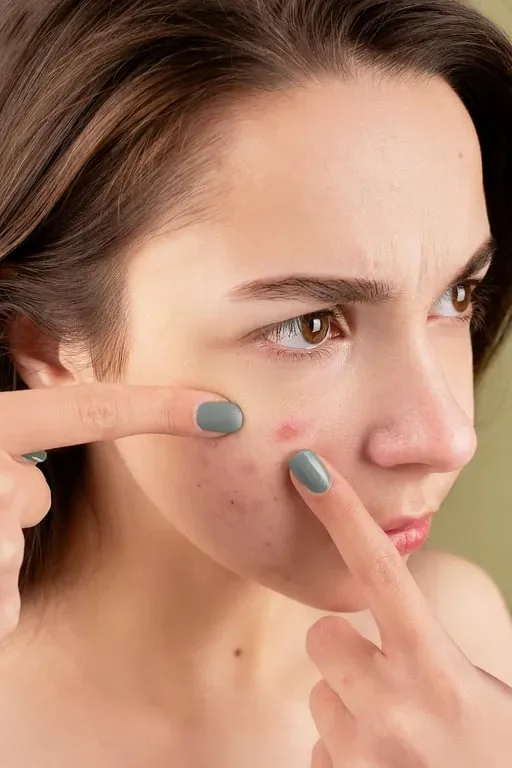
AI Piercing Filter Preview a Piercing First
Upload a photo, choose a spot and jewelry, and Toty adds an earring, nose ring or lip ring naturally.
Sign in to generate. Failed runs are free.
Examples
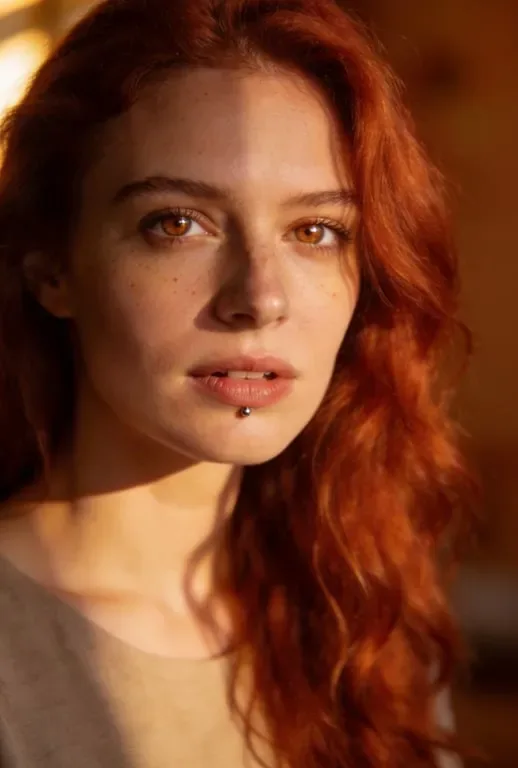



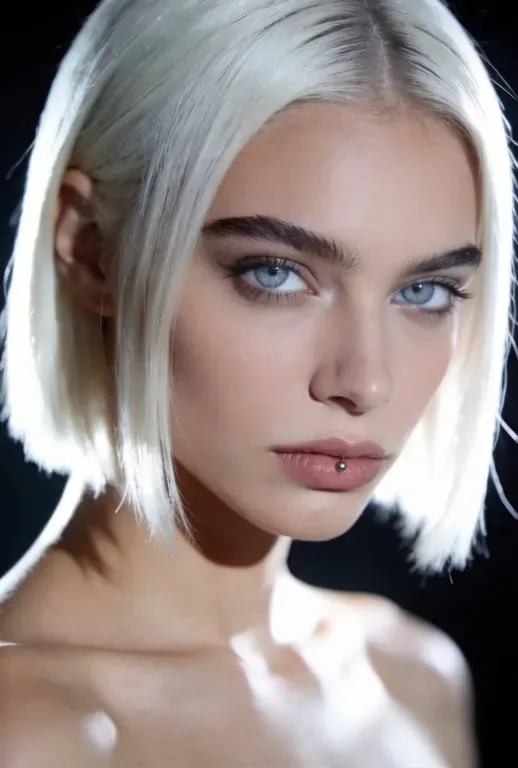
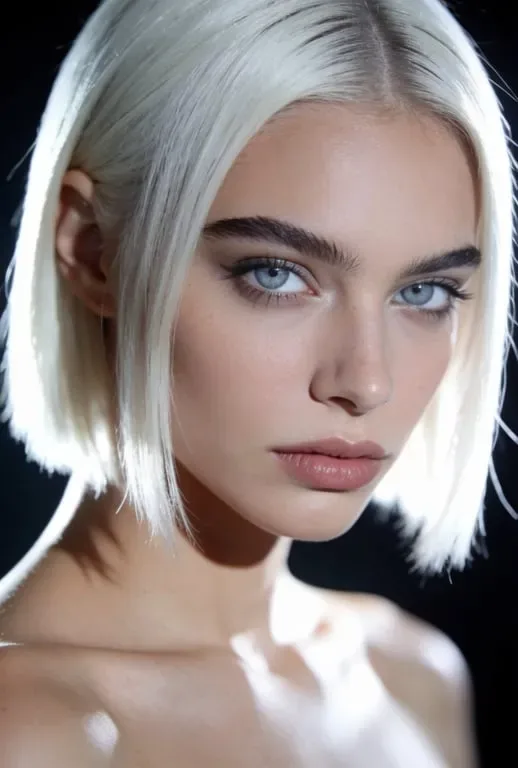
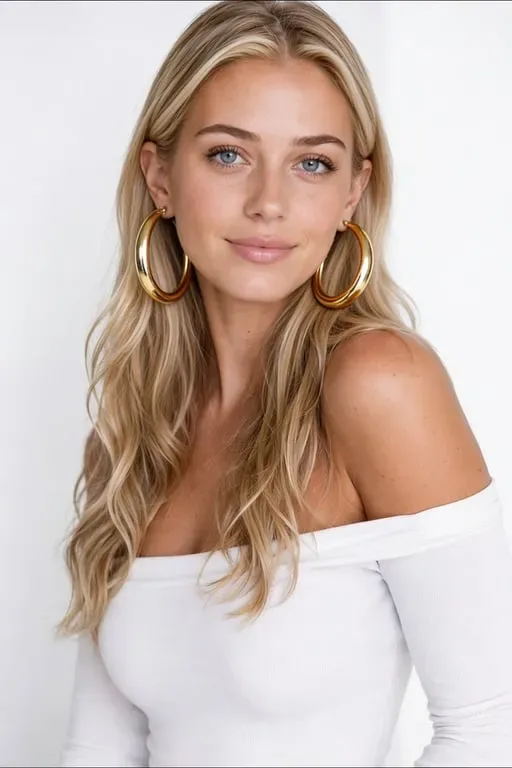
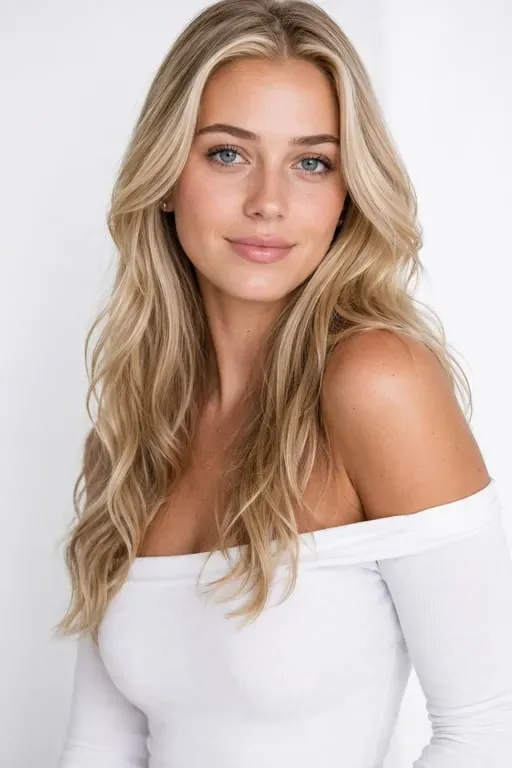


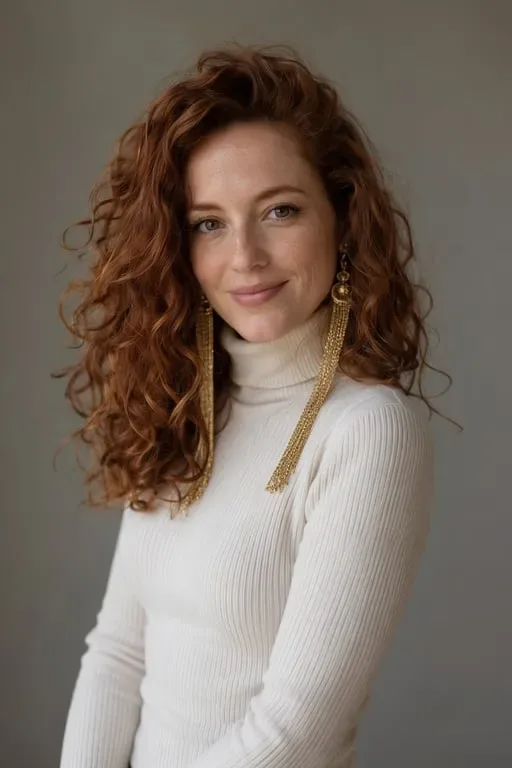

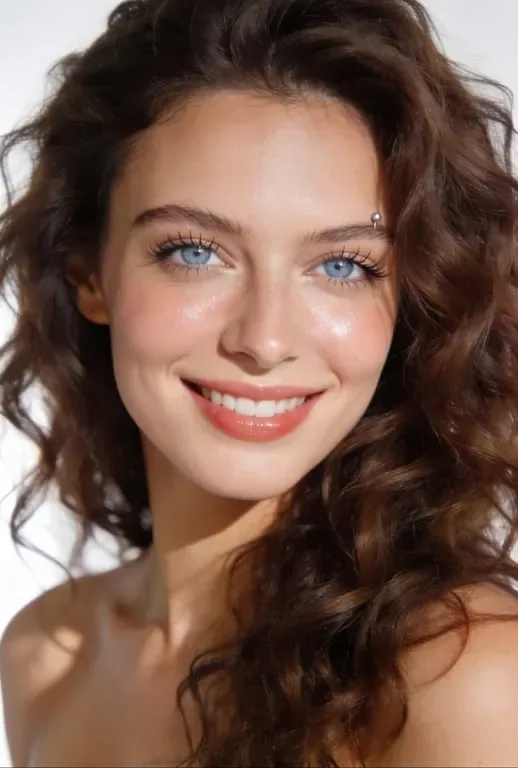
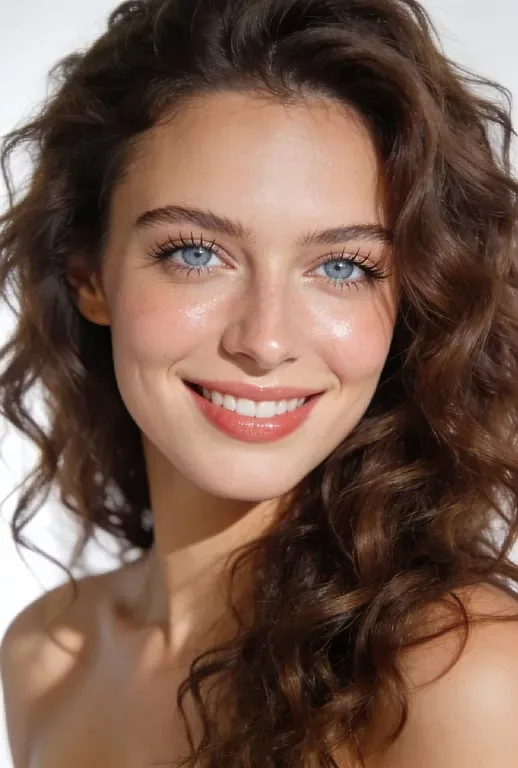

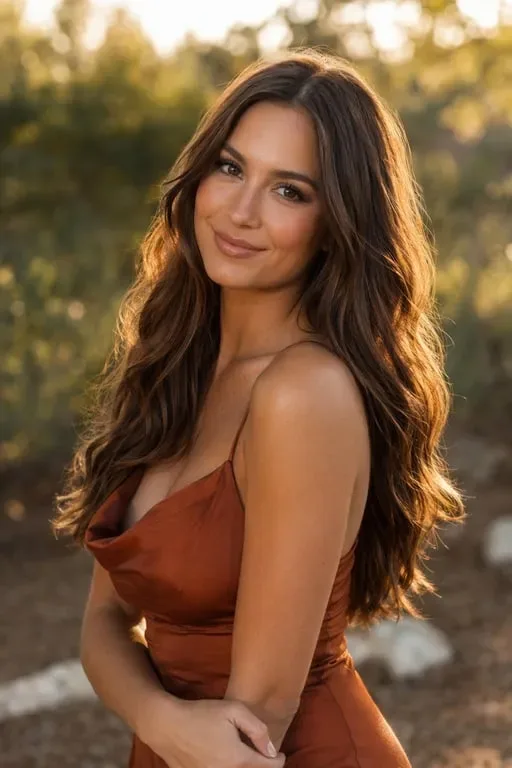
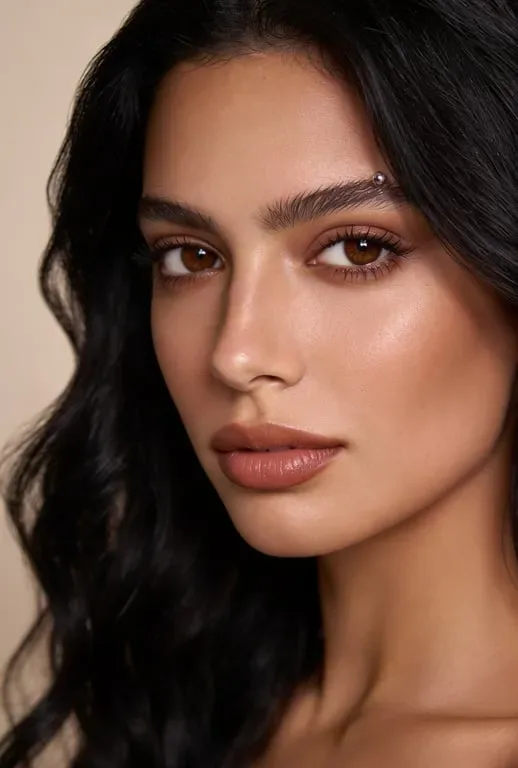
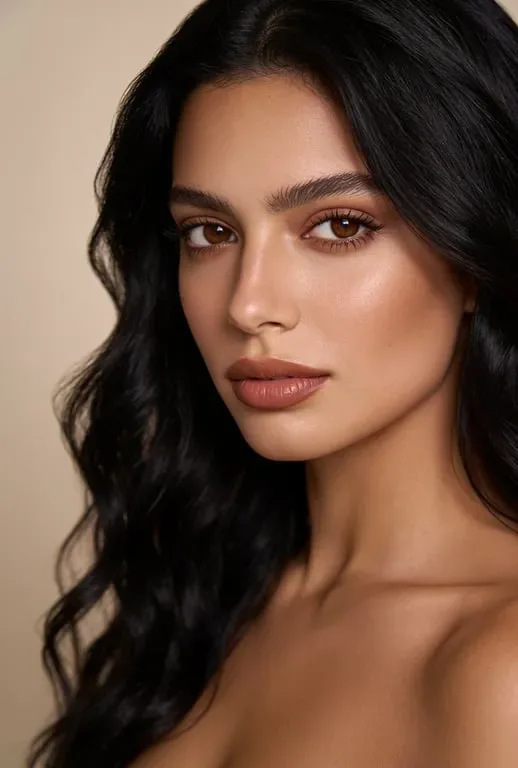
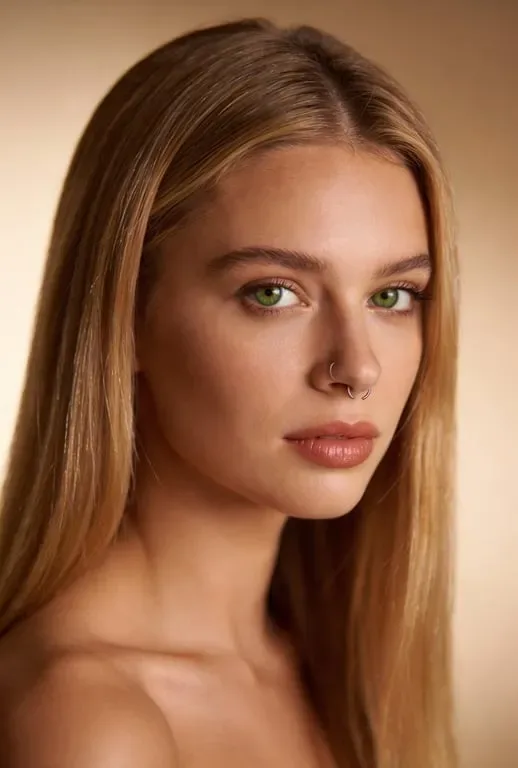
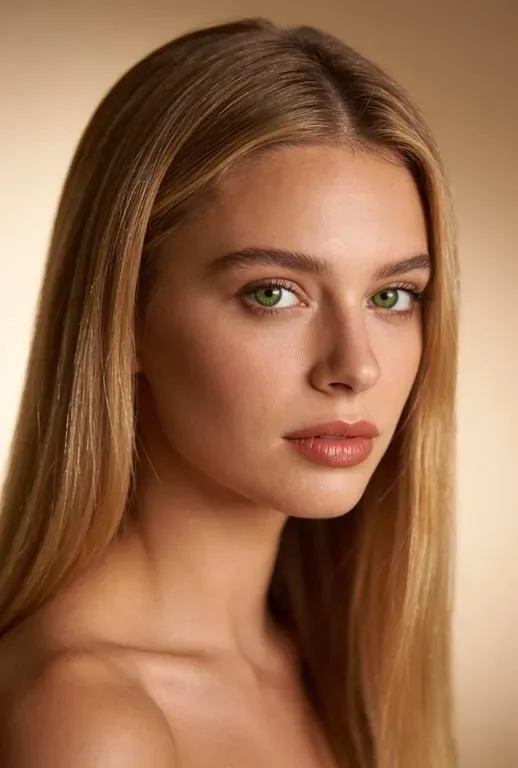
What people use the piercing filter for


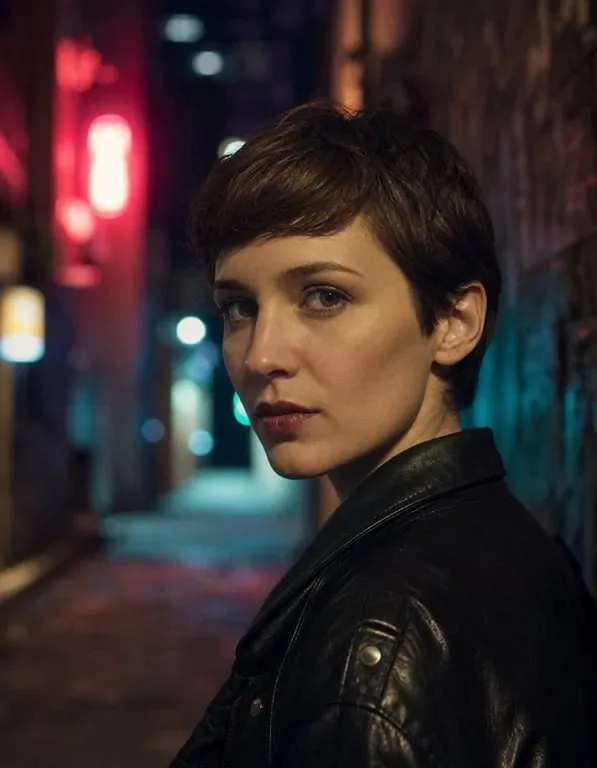
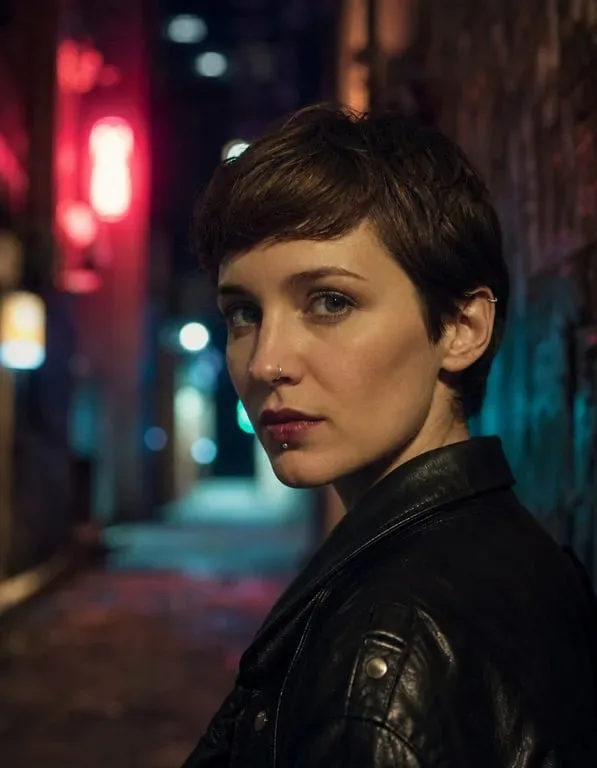
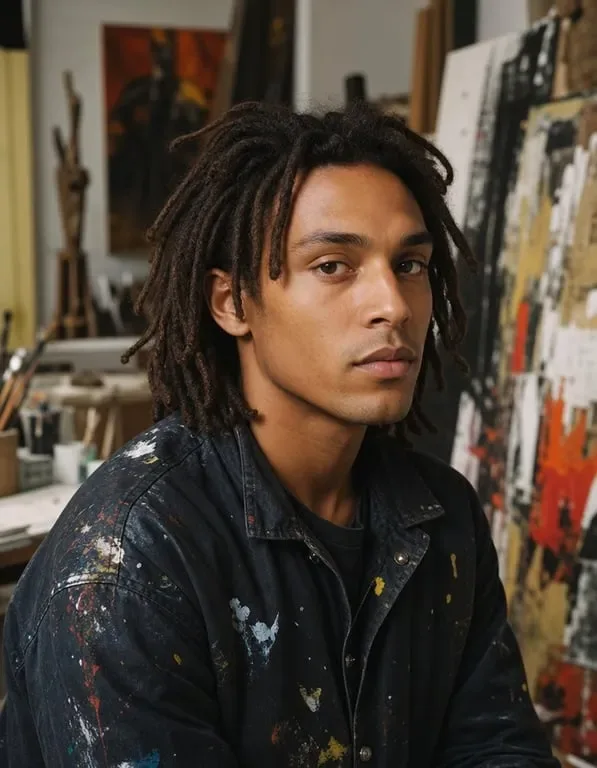
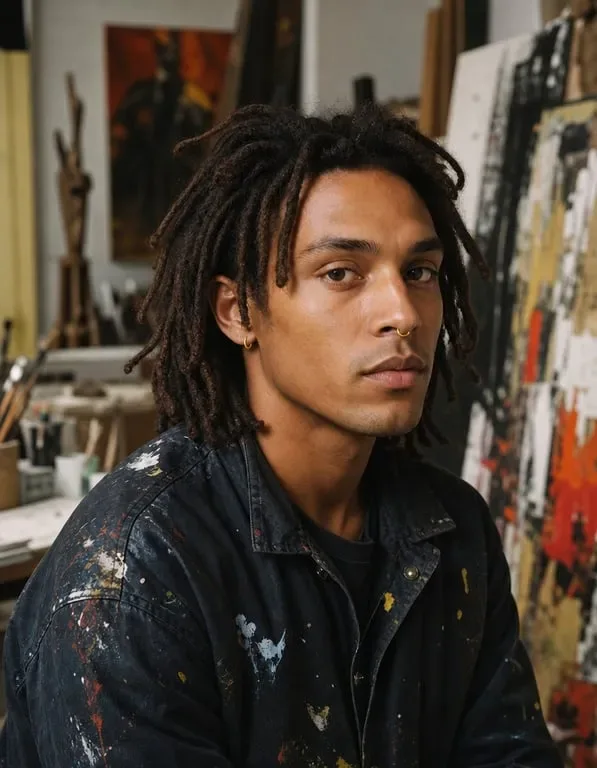
Why use Toty for the piercing filter


Only what you ask changes
The default prompt keeps the face, expression, clothing and background, and changes only the part you describe, so the person still looks like themselves.


Pick your model
GPT Image, Nano Banana, Seedream and more are available, so you can choose by look and price.
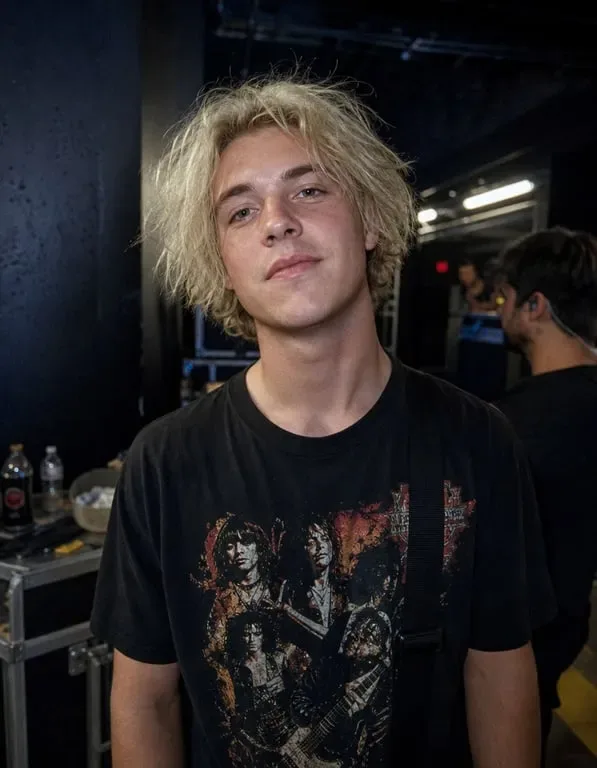
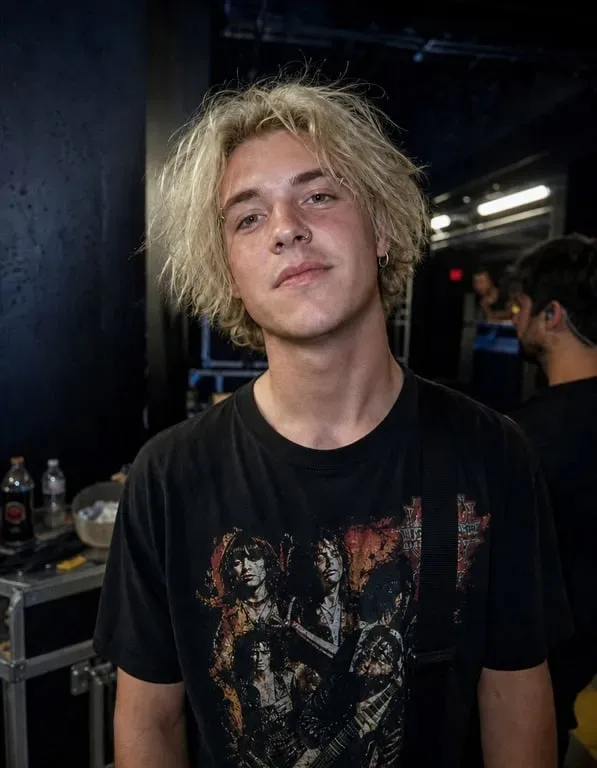
Clear credit cost
Sign in to generate. The submit button shows the credits the selected model and resolution will use, and a failed task costs nothing.
How to use the piercing filter
- Upload photo
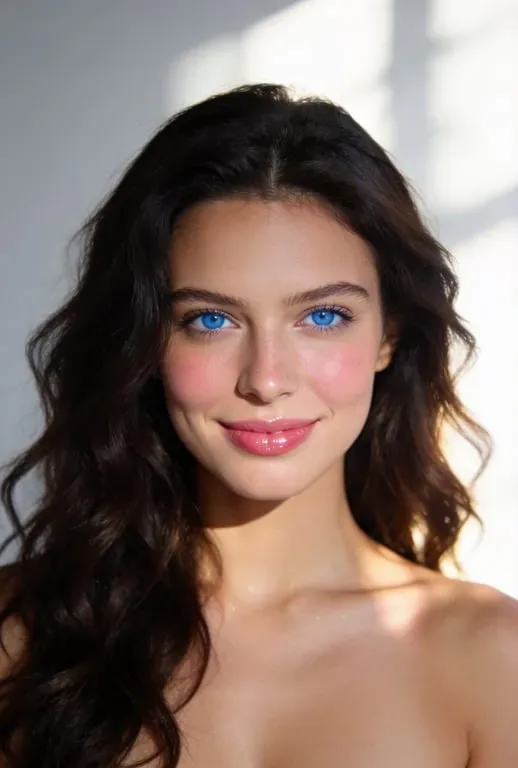 Step 1
Upload a photo
Use a clear, well-lit photo. JPEG, PNG and WebP are supported.
Add three piercings: (1) ONE small silver eyebrow barbell on the outer tail of the RIGHT eyebrow only: two tiny silver balls pierced through the skin below the brow tail, the LEFT eyebrow must stay completely clean with no piercing; (2) a small silver nose stud on the right nostril; (3) a small silver labret stud centered just below the lower lip. All three piercings should look realistic and naturally placed. Keep the exact face, hair, makeup, smile, expression, lighting, and background completely unchanged.
2K3:4GenerateStep 2Adjust the prompt
Give the spot, count and metal, such as two small silver studs on the left helix.
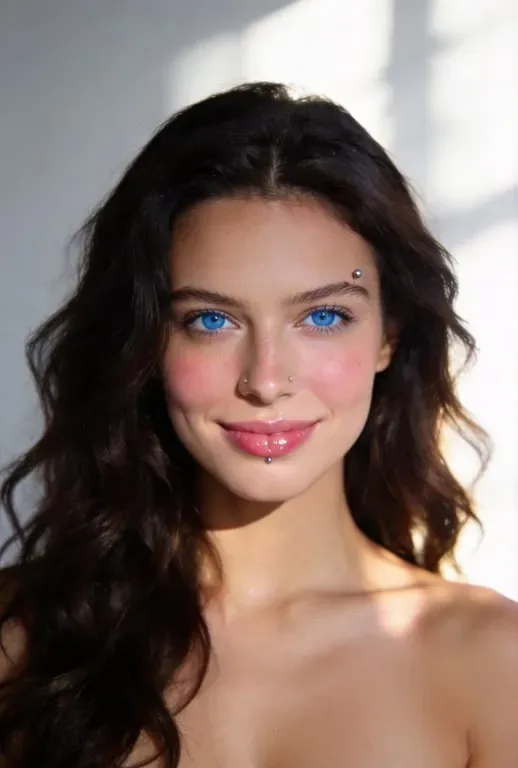 DownloadStep 3
Generate and download
Sign in, check the credit cost on the button, and generate. Download the result when it is ready.
Frequently Asked Questions
Yes. Say which piercing to remove.
Yes. Generating needs a Google or email account. New accounts receive a few welcome credits to try it.
Each generation uses credits based on the model, resolution and image count. The submit button shows the exact amount, and failed tasks are not charged.
Usually between ten seconds and a minute, depending on the model and how busy it is.
Only upload photos of yourself or of people who agreed to it. Do not use results to impersonate, harass or mislead anyone; see the acceptable use policy.
Keep exploring
New models and popular tools, one click away.